
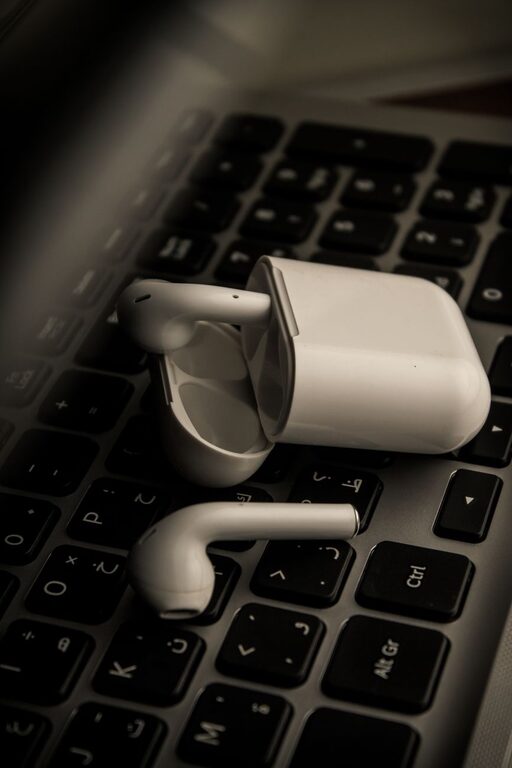
Technology accessories can make daily tasks easier, faster, and more enjoyable. However, an accessory that looks useful may not feel comfortable after hours of use. A mouse can be too small, headphones can press against your ears, or a charging cable can be too short for your setup.
Choosing comfortable accessories means looking beyond appearance and price. The right products should fit your habits, workspace, and body while being simple to use. Here are practical tips for selecting technology accessories that support comfort throughout the day.
Start With Your Daily Routine
Before buying an accessory, consider how you use your devices. Someone who writes for several hours may need a different keyboard from someone who mainly checks email. A frequent traveler may value compact equipment, while a home user may prefer larger accessories with extra features.
Ask yourself:
– How many hours will I use this accessory each day?
– Will I use it at home, at work, or while traveling?
– Do I need portability, durability, or both?
– What problems do my current accessories create?
– Does the product work with my existing devices?
Making a short list of your needs can prevent unnecessary purchases. It also helps you focus on comfort features that matter most to you.
Choose a Keyboard That Fits Your Typing Style
A comfortable keyboard should support a natural hand position and make typing feel easy. Keyboards vary in size, layout, key movement, and shape, so it is useful to compare these features before buying.
Consider Keyboard Size
Full-size keyboards include a number pad and may be useful for people who work with numbers. Tenkeyless keyboards remove the number pad, leaving more room for a mouse. Compact keyboards save desk space but may use smaller layouts or combine certain keys.
Choose a size that matches your work. If your desk is small, a compact model may reduce crowding. If you frequently enter numbers, a full-size keyboard may be more convenient.
Pay Attention to Key Feel
Some keyboards have soft, quiet keys, while others provide more noticeable feedback. The best option depends on your preference and environment. Quiet keys can be useful in shared spaces, while more responsive keys may appeal to people who enjoy a defined typing feel.
A comfortable keyboard should not require excessive force. Look for keys that are easy to press and a layout that feels familiar.
Check the Angle and Wrist Support
A slight keyboard angle can feel comfortable, but a steep angle may cause your wrists to bend upward. A detachable wrist rest can provide support, although it should not force your hands into an awkward position.
Try to keep your wrists relaxed and your fingers aligned with the keys. A keyboard with adjustable feet can help you find a more suitable angle.
Find a Mouse That Matches Your Hand
A mouse should fit your hand without requiring a tight grip. If it is too small, your fingers may feel cramped. If it is too large, you may have to stretch to reach the buttons.
When comparing mice, consider:
– Overall size and shape
– Weight and balance
– Button placement
– Scroll wheel texture
– Wired or wireless connection
– Compatibility with your operating system
Some mice are designed for a palm grip, while others suit a claw or fingertip grip. If possible, hold the mouse before buying it. Your hand should rest naturally, and the main buttons should be easy to reach without stretching.
A lighter mouse may be easier to move, while a heavier model may feel more stable. Neither option is best for everyone, so comfort and control should guide your choice.
Select Headphones With a Comfortable Fit
Headphones are often worn for long periods, making fit especially important. Over-ear models surround the ears, on-ear models rest directly against them, and earbuds fit inside the ear.
Consider Weight and Pressure
Lightweight headphones may feel easier to wear throughout the day. However, very light materials do not always guarantee comfort. The headband should rest gently on your head, and the ear cushions should not create excessive pressure.
Adjustable headbands are helpful because they let you position the headphones more naturally. Soft, breathable ear cushions can also improve comfort, especially during extended use.
Think About Your Environment
If you use headphones in a quiet room, a simple pair may be enough. In a busy environment, you may prefer a model that reduces outside noise. If you need to stay aware of conversations, choose a design that allows some surrounding sound through.
Wireless headphones can reduce cable clutter, while wired models do not require regular charging. Consider which option fits your routine better.
Choose Cables and Chargers for Convenience
Cables are small accessories, but the wrong ones can make a workspace frustrating. A cable that is too short may pull on a device, while an overly long cable can create clutter.
When choosing cables and chargers, check:
– Length
– Connector type
– Charging and data support
– Flexibility
– Build quality
– Compatibility with your devices
A braided cable may resist wear, while a flexible rubber cable may be easier to pack. Look for reinforced connectors, especially if you frequently unplug and reconnect the cable.
Avoid choosing a charger based only on appearance. Confirm that it is compatible with your device and from a reliable manufacturer. Keeping one cable at your desk and another in your travel bag can also reduce daily inconvenience.
Improve Comfort With a Laptop Stand
Laptop screens are often positioned too low, which can encourage you to bend your neck. A laptop stand can raise the screen and make it easier to maintain a more comfortable viewing position.
Choose a stand that:
– Holds your laptop securely
– Supports the device’s size and weight
– Provides enough height adjustment
– Folds easily if you travel
– Allows airflow around the laptop
If you raise your laptop, you may also need a separate keyboard and mouse. This setup lets you position the screen and input devices more independently.
Look for Adjustable Accessories
Adjustability is one of the most useful comfort features. An accessory that can be changed to suit your setup is more likely to remain useful over time.
Useful adjustable features include:
– Tilting keyboard supports
– Customizable mouse buttons
– Adjustable monitor arms
– Extendable tablet stands
– Headphone headbands with multiple size settings
– Cable organizers with flexible placement
Avoid paying extra for features you will not use. The goal is not to choose the most advanced accessory, but to find one that can be adjusted easily and supports your actual routine.
Keep Your Workspace Organized
Comfort is affected by more than individual products. A crowded or poorly arranged workspace can make even good accessories feel awkward.
Place frequently used items within easy reach. Keep cables away from areas where they may catch on your hands or chair. Use a small cable tray, clips, or ties to keep cords under control.
You should also leave enough space to move your mouse comfortably. If the keyboard and mouse are pushed too close together, your hands may feel restricted.
Test Before Committing
Whenever possible, try an accessory in person. Check whether the keyboard layout feels natural, whether the mouse fits your hand, or whether the headphones create pressure.
If you shop online, review measurements, return policies, and customer feedback. Look for comments about long-term comfort rather than short-term impressions. Reviews that mention hand size, head size, desk space, or hours of use may be especially helpful.
Give yourself time to adjust to a new accessory, but do not ignore persistent discomfort. If a product consistently feels awkward, it may not be the right match.
Build a Comfortable Setup Gradually
You do not need to replace every accessory at once. Start with the item that causes the most inconvenience. For example, replace an uncomfortable mouse before buying a new desk lamp or decorative stand.
A practical upgrade order might be:
- Keyboard and mouse
- Laptop stand or monitor support
- Headphones
- Charging cables and power accessories
- Cable management tools
Choosing accessories gradually helps you identify what improves your daily experience. It also allows you to create a setup that feels personal, practical, and comfortable without unnecessary spending.
The best technology accessories are the ones that fit naturally into your routine. By considering size, weight, adjustability, compatibility, and workspace organization, you can choose products that make everyday technology use easier and more comfortable.